The first pane we will take a look at is the Tabs pane.
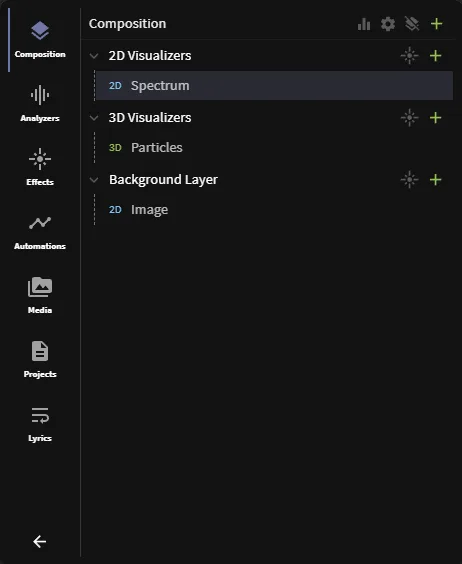
Extra space
You can get a little bit of extra horizontal space if you press the button at the bottom of the tabs selector to hide their labels.
This pane contains various tabs. We will cover all of them.
Composition tab
This tab displays your layers and their order, as well as their items, and everything that is related to them.
Let’s start from the top. In the right corner, we have a couple of useful actions relating to the project and layers:
- Audio processing
- Render settings
- Clear all objects
- Add layer
Audio processing
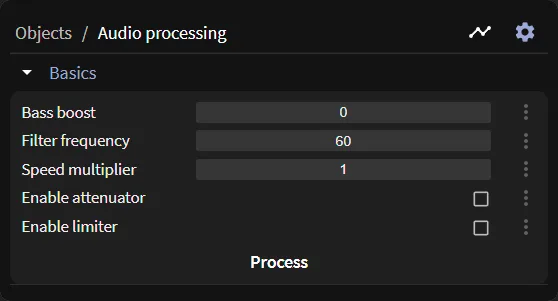
The audio processing settings open a section in the Item Controls pane relating to simple audio processing settings.
Bass to crush your skull
Did you know you can bass boost your audio without leaving the editor? Open the section mentioned above, increase the bass boost property, and click Process. You can also enable the limiter to prevent clipping.
Render settings
The render settings is another button to open a section in the Item Controls pane. Think of these as global settings relating to the editor
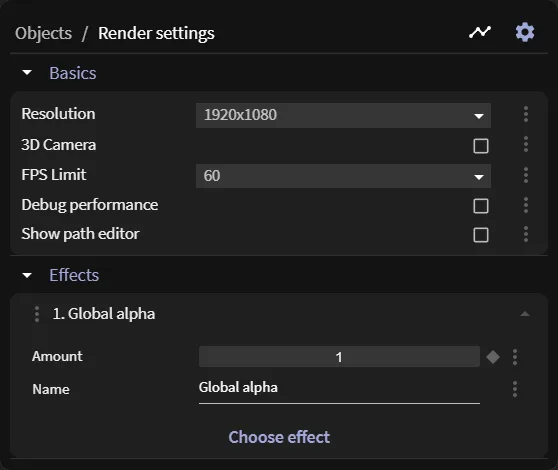
Here, you can change the resolution to more options, enable the 3D mode, set or unset an FPS limit to the preview, enable performance metrics, or enable the path editor. This is also where you add global effects to the entire screen.
'Craft' my FPS
You can quickly enable the performance metrics by pressing F3. Keep in mind you have to play the preview to see the metrics.
Layers
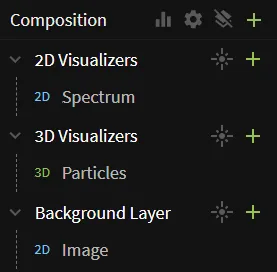
This is a section displaying your layer structure.
- Every layer has a button to quickly add an effect and an item to it. The add item button is the green one
- Next to these buttons, various toggles will be show, such as if the layer is soloed, disabled or rendered to a buffer
- Every layer has a right-click context menu with many useful options
- Every layer can be expanded and collapsed using the arrow button on the left. Whether or not a given layer is expanded or not is saved to the project
- You can drag every layer to rearrange it in the hierarchy. Read about the layer hierarchy here
You can add new layers by pressing the green plus icon next to the clear all objects button.
Analyzers
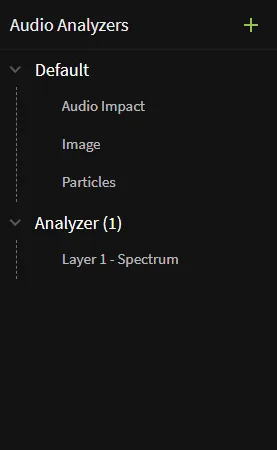
This tab is similar to the layers section covered above, but only displays your analyzers and what they are linked to. You can reorder the analyzers and move objects in and out of them to reassign them.
Effects
This tab is similar to others, but by default it does not display connections. It serves as a way to quickly access all of your effects. You can enable showing the connections with an icon close to the add button.
Warning
The Effects tab has its own timeline only containing the effects!
Automations
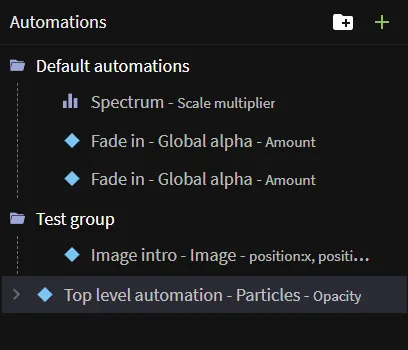
This tab allows you to see all automations, what they are connected to, and what they control. Automations are hierarchical! For more information about that, read here.
Warning
The Automations tab has its own timeline only containing the automations!
Automations have the ability to be at the top level, or inside of groups. Groups currently cannot be placed inside of other groups.
Quick grouping
Did you know that you can quickly group many automations by selecting them on the tracks and pressing G?
Media
This tab allows you to quickly search Pexels for stock images and videos, or load your own uploads that you have decided to keep there.
Save us some storage
If you have large items that you re-use across multiple projects, such as videos, huge images or large songs, we encourage you to use the Uploads section. When you save a project, you create copies of these assets, but you can store them once in the media tab and re-use them everywhere from there
Projects
This tab allows you to quickly access your saved projects. You can also change the project name and duration from here.
Project duration
The project duration is supposed to be coupled to the audio length, but you can set a different one here. This is not expected behavior and things might break, but we give you the option if you really need to.
Lyrics
This tab allows you to search for, create, synchronize, and edit lyrics for use with the Lyrics item. TODO: ADD A NEW DOC FOR LYRICS