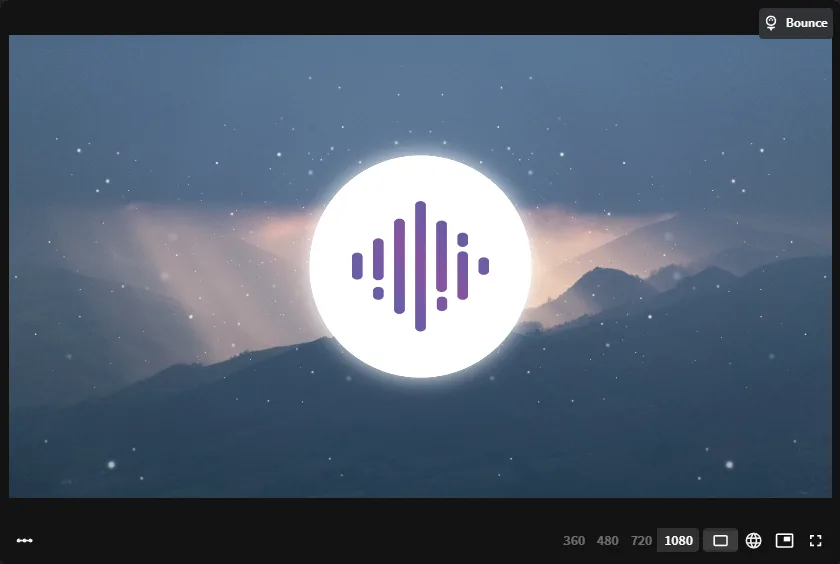
This pane shows a preview of what graphics are being rendered. It is a very close approximation to what your video will look like when rendered.
Bottom controls
There are a few controls on the bottom:
- Path editor controls These are useful for items like the Spectrum, where you have to draw a path. Enabling it shows more controls
- Resolution and aspect ratio picker This section allows you to select the project (and, by extension, the preview) resolution and aspect ratio. You can quickly change the aspect ratio to be landscape, portrait or square
- 3D mode This allows you to view and manipulate items in the project as they are rendered in the virtual 3D scene. The preview window will turn into an interactive view if you enable this
- Open external preview This allows you to pop out the preview canvas into a separate window. It’s very useful for multi-monitor setups or if you want to capture the preview
- Fullscreen This is self-explanatory, it opens the preview full screen. You can also press Ctrl+Enter to instantly switch to full screen
Right click
The canvas itself also has some right-click options:
- Set background This is for Image items that have “Auto background” enabled and allows you to change their content quickly
- Save image This is for taking a snapshot of the current preview
Craft mine screenshots, craft them, Steve!
You can also press F2 to instantly take a snapshot
- Open external preview Refer to the explanation above
Drag and drop
The canvas serves as a target for dragging in any files to quickly add them. You can drag images, audios and videos right on the preview to add or swap them in the project. You can also drag the Lyrics item here to open it in the Lyrics tab
Quick settings
Some items have quick settings available. These will display as a button in the top right corner of the canvas. Do not delete default automations and effects for these to remain functional.